

Choose scene access
Choose who can enter your scene and how they receive access.
Before you start
- Own the scene or have permission to change its settings.
Follow these steps
- Open My scenes.
- Find the scene and choose its Edit button.
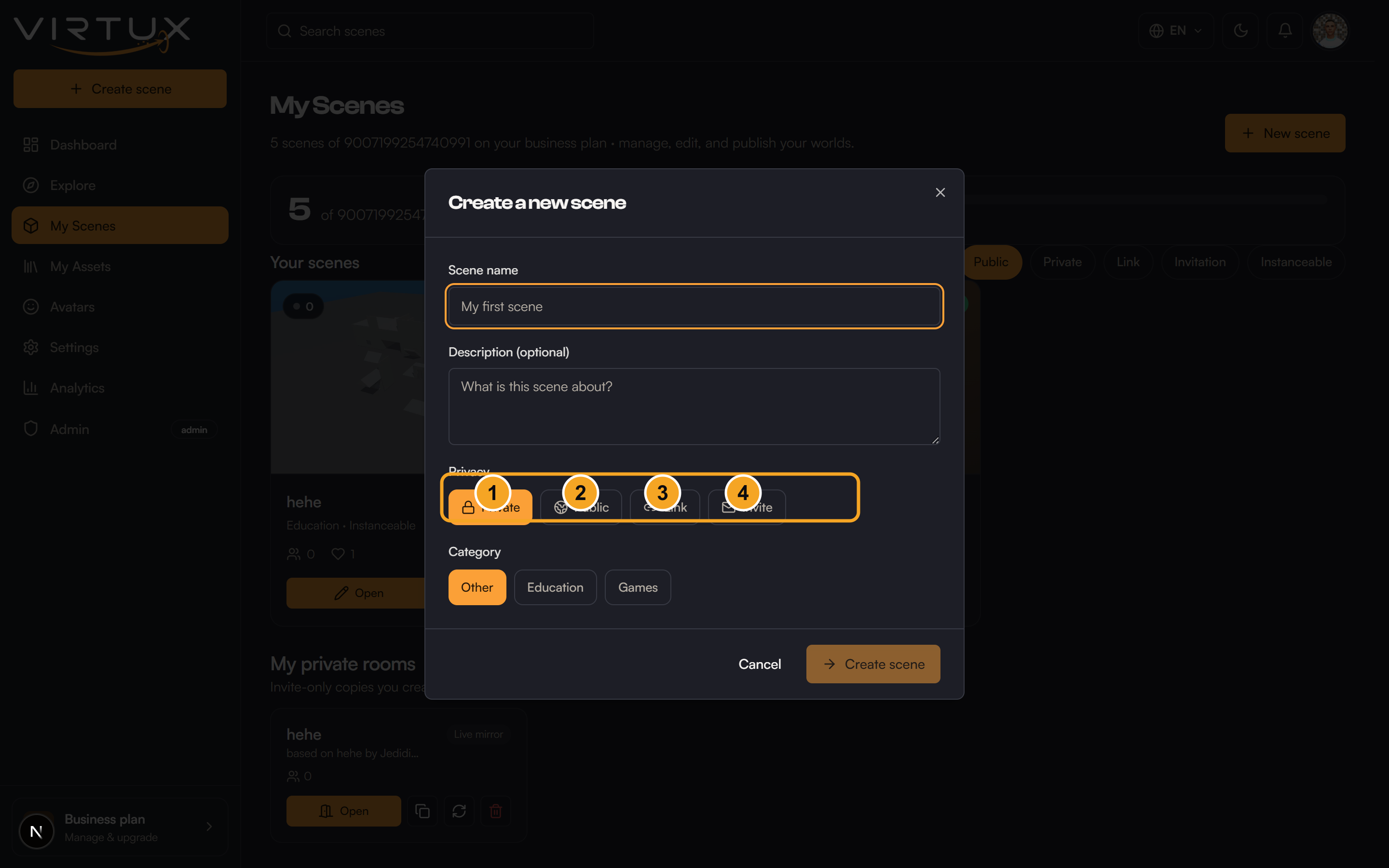
- Open the Scene access control.
- Choose Private for owner-only access.
- Choose Public to list the scene in Explore.
- Choose Link to allow anyone with the link or code.
- Choose Invite to restrict entry to approved people.
- Save the scene changes.
Check that it worked
- The badge on the scene card changes to the selected access type.
- Public scenes can appear in Explore.
- People without the required access cannot enter Private or Invite scenes.
Useful tips and common mistakes
- Access controls entry; permissions control actions after entry.
- Use Link for unlisted sharing and Invite when the guest list must be controlled.
- Test sensitive access changes using a separate non-owner account when possible.