

Asset library overview
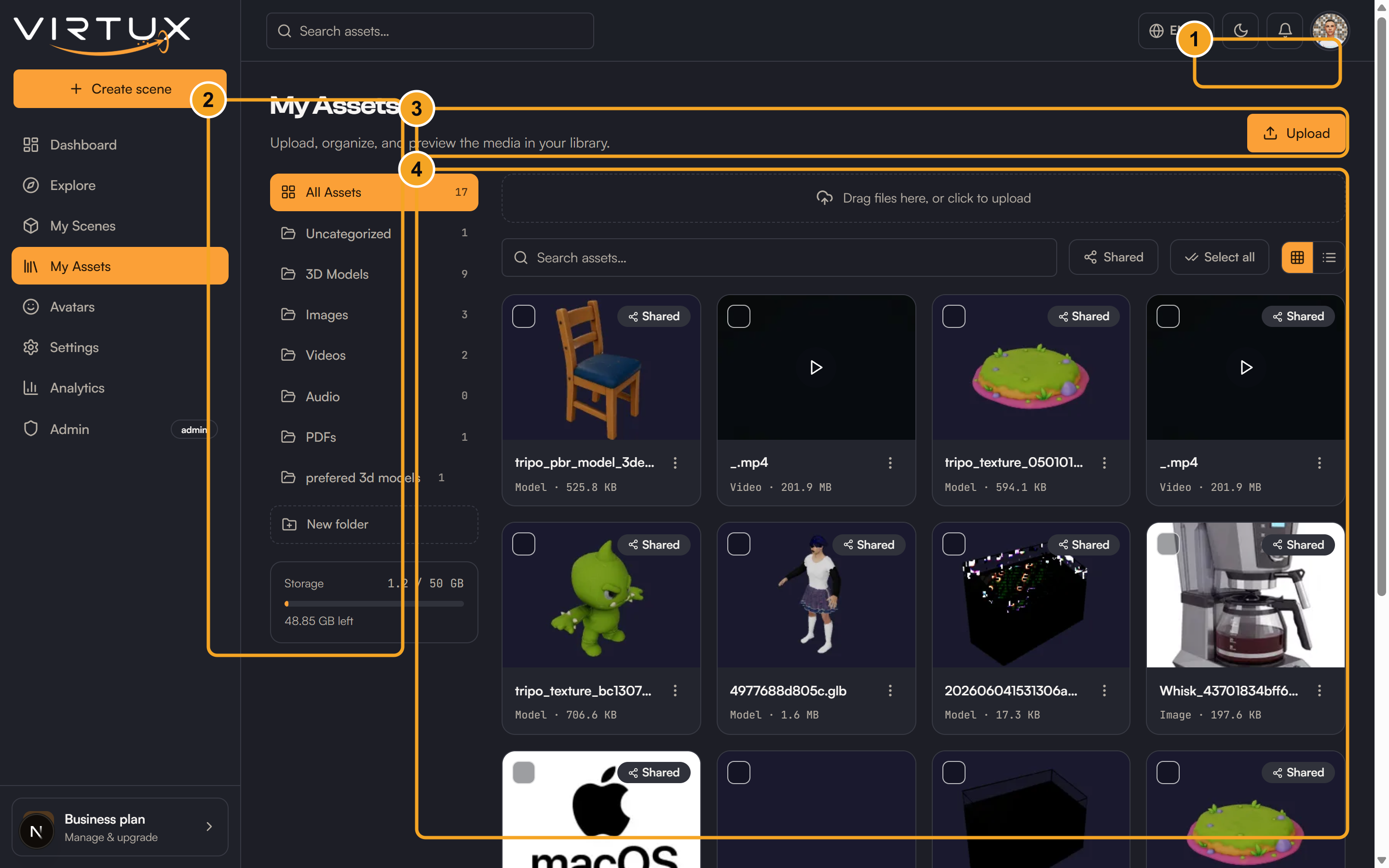
My assets stores reusable models, images, audio, videos, and PDFs. Assets can be previewed, tagged, grouped in folders, and shared into scene libraries.
Upload and preview
- Open My assets.
- Choose Upload and select a supported file.
- Wait for processing to finish.
- Select the asset to preview it.
- Check the storage meter for your remaining allowance.
Find and organize
- Search by asset name.
- Filter by model, image, audio, video, or PDF.
- Switch between grid and list view.
- Create folders for projects or categories.
- Create tags and apply them to assets.
- Use multi-select for batch actions.
Use assets in scenes
- Open the editor Assets panel or asset manager.
- Choose My assets or browse the platform library.
- Share an asset into the current scene when required.
- Place it, then adjust it like any other scene object.
- Shared assets shows which scenes can use each asset.
Delete, unshare, and report
- Unsharing removes an asset from a scene library but leaves copies already placed.
- Deleting can remove instances from scenes and cannot be undone.
- Report platform assets that are inappropriate, misleading, or unsafe.