

Scenes overview
A scene is a virtual space that people can visit. Owners control its name, access, content, editing rules, private rooms, and sharing.
Create a scene
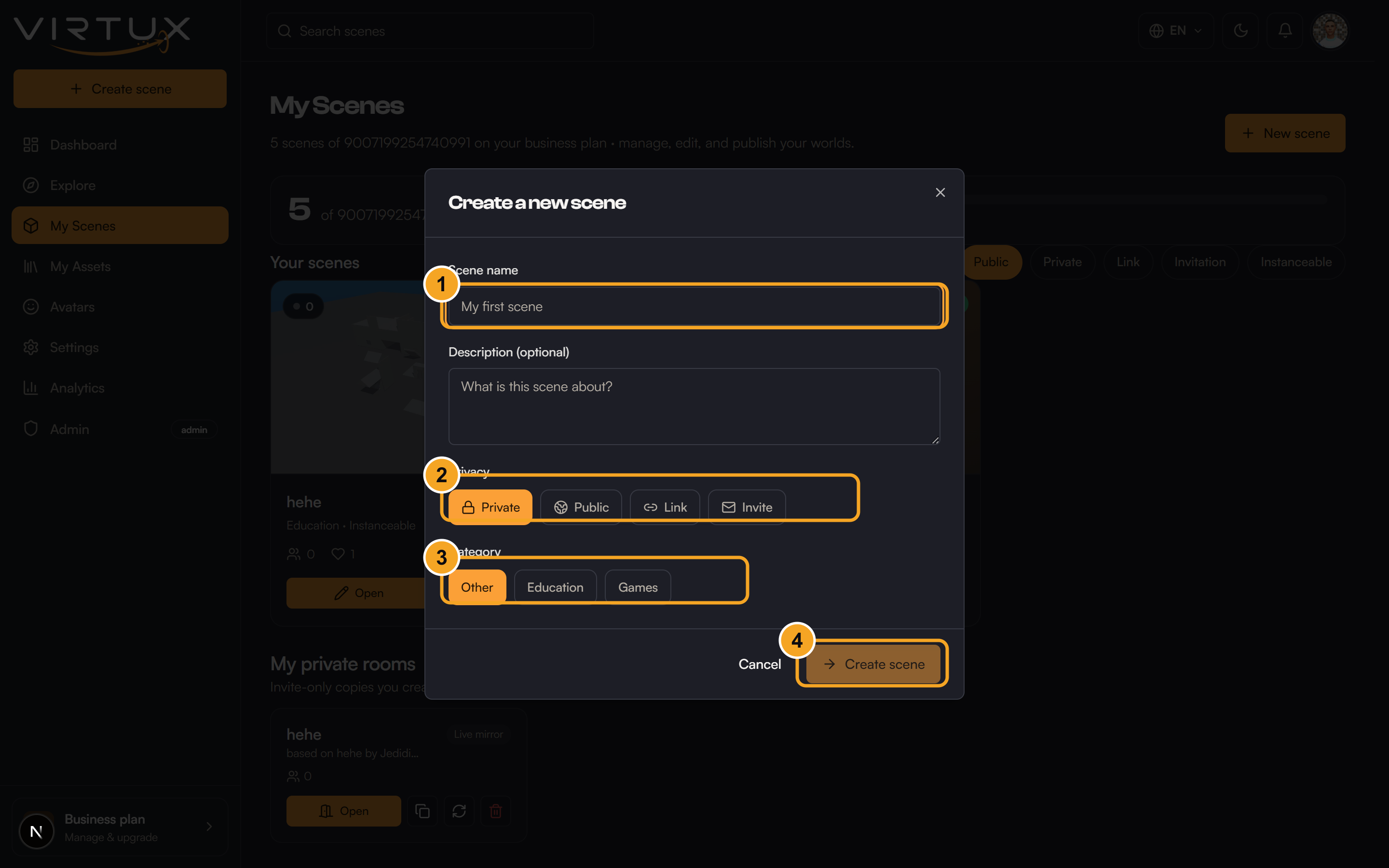
- Open My scenes and choose Create scene.
- Enter a scene name and optional description.
- Choose Blank, School, Museum, Showroom, or Lab as the starting template.
- Choose who can enter: Private, Public, Link, or Invite.
- Choose Create scene. VIRTUX opens the new scene.
Access choices
- Private: only the owner can enter until access is granted.
- Public: the scene can appear in Explore.
- Link: anyone with the scene link or code can enter.
- Invite: only approved email addresses can enter.
Manage an existing scene
- Select the scene card to enter it.
- Use Edit to change its name, description, access, editing lock, and room options.
- Use Analytics when available to review visitor activity.
- Use the room button to create an invite-only copy.
- Delete permanently removes the scene.
Good to know: Replacing a scene access link makes the previous link stop working. Share the new link with people who still need access.